Go Cashless in Lipa: How to Use GCash and Maya at the Lipa City Public Market
Tired of fumbling for change? Learn how to use GCash and Maya at the Lipa City Public Market with our step-by-step guide on digital payments for fresh produce.
The Modern Market Goer’s Guide: Digital Payments at Lipa City Public Market
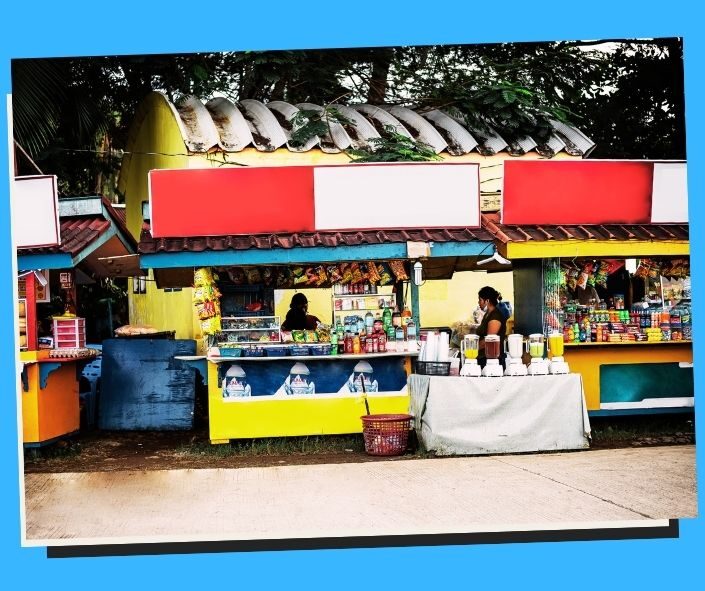
The Lipa City Public Market has always been the vibrant heartbeat of the “Little Rome of the Philippines.” It is where the freshest barako coffee beans, the most succulent lomi ingredients, and the morning’s catch from nearby shores converge. Historically, navigating these busy aisles required a pocket full of small bills and a steady hand for counting coins in the humid air. However, the traditional palengke experience is undergoing a high-tech makeover. 📱
Digital wallets like GCash and Maya are no longer reserved for trendy malls or online shopping. In Lipa City, even the most traditional vendors, from the meat section to the fruit stalls, are embracing the convenience of “Scan to Pay.” For the modern Lipeño, this means a faster, more secure, and more hygienic way to shop for the week’s groceries. Whether you are a local regular or a visitor looking for the best deals, learning how to use your e-wallet effectively at the public market is a game-changer.
How to Use GCash or Maya at the Lipa City Public Market
Ready to ditch the heavy coin purse? Follow this step-by-step guide to navigate the Lipa City Public Market with nothing but your smartphone.
Step 1: Fund Your Wallet Before You Arrive
While there are cash-in partners near the market (like 7-Eleven or Palawan Pawnshop), it is best to ensure your GCash or Maya account has enough balance before you enter. Data signals inside the crowded market can sometimes be spotty, so having your balance ready saves time.
Step 2: Look for the QR Ph Standee
Most vendors in Lipa now display a “QR Ph” code. This is the national standard, meaning you can scan a Maya QR using your GCash app and vice versa. Look for these small blue or green signs hanging near the scales or pinned to the stall pillars.
Step 3: Confirm the Exact Amount
Before scanning, let the vendor weigh your goods. Once they give you the total (e.g., “₱143.50”), confirm it clearly. In a noisy market environment, verbal confirmation prevents errors in inputting the amount.
Step 4: Scan and Pay
Open your preferred app:
- For GCash: Tap “QR” at the bottom center and point your camera at the vendor’s code.
- For Maya: Tap the “Scan to Pay” icon at the bottom and align the code in the frame.
Step 5: Input the Amount and Check the Name
After scanning, the vendor’s registered name (often the stall owner’s name) will appear. Type in the exact amount. Many vendors appreciate it if you show them your screen before you hit “Pay” to confirm the numbers are correct.
Step 6: Show the Confirmation Screen
Once the transaction is successful, a confirmation message will appear. Show this to the vendor. They will often wait for their own SMS notification or simply glance at your Reference Number to verify the sale.
Step 7: The “Send Money” Alternative
Some smaller vendors might not have a formal QR standee yet, but are willing to accept payments via “Express Send” (GCash) or “Send Money” (Maya). In this case, simply ask for their mobile number. This is common in the peripheral vegetable stalls or with mobile vendors.
Step 8: Use “GCash Junior” or “Maya Family” for Errants
If you are sending your teenager to the market for a quick errand, you can use the parental controls on these apps to provide them with a set budget, ensuring they don’t lose cash on the way.
Step 9: Practice “Suki” Digital Etiquette
If you are a regular (suki), some vendors might even allow you to pay later via GCash if you are short on funds that day, provided you have built a strong digital relationship with them.
Step 10: Check Your Transaction History
At the end of your market run, use the “Activity” or “Transactions” tab in your app to track your total spending. This is an excellent way to manage your household budget—something that is much harder to do with cash.
Benefits
- Exact Payments: No more “pabarya” (asking for change). You can pay exactly ₱12.75 without hunting for centavos.
- Hygiene: Public markets handle raw meat and fish; avoiding cash means you don’t have to touch physical money after handling food.
- Budget Tracking: Your app automatically logs every purchase, helping you see exactly how much you spent on meat vs. vegetables.
- Security: You don’t have to carry a large wad of cash, which can be a target for pickpockets in crowded areas.
- Saves Time: Avoid long lines at the ATM near the market, especially on “Sweldo” (payday) Fridays.
- Rewards and Cashback: Occasionally, Maya or GCash offers “Scan to Pay” promos or vouchers that can be used even in local markets.
- Financial Inclusion: Using these apps helps build a “financial footprint” for vendors, making it easier for them to apply for loans.
- Digital Receipts: You have a permanent record of your transaction in case there is a dispute about a purchase later.
- Interoperability: Thanks to QR Ph, you don’t need both apps; one wallet can pay almost any digital-ready vendor.
- Modern Convenience: It aligns with the “Cash-Lite” vision of the Bangko Sentral ng Pilipinas, making Lipa a more modern city.
Costing
Using GCash or Maya at the market is generally free for the customer, but there are minor considerations:
- Data Charges: Unless you have a data plan, you may spend ₱10–₱50 on a “load” promo to access the internet while shopping.
- Cash-In Fees: If you fund your wallet at a convenience store, they may charge a 1% to 2% fee once you exceed your monthly limit.
- Transfer Fees: If your vendor only has Maya and you use GCash to “Bank Transfer” instead of scanning a QR Ph, there might be a ₱15 fee. Tip: Stick to QR scanning to avoid this.
Pros and Cons
Pros
- Instant transactions without waiting for change.
- Reduces the risk of receiving counterfeit bills.
- Convenient for those who prefer not to carry a physical wallet.
- Enables better record-keeping for small business owners.
- Growing acceptance among Lipa’s younger generation of vendors.
- Safe for night-time market runs when ATMs might be inaccessible.
- Encourages “micro-savings” within the apps.
- Environmentally friendly (no paper receipts).
- Highly reliable infrastructure
- Enhances the overall professional image of the Lipa City Public Market.
Cons
- Connectivity issues inside the “Looban” (inner) sections of the market.
- Risk of the phone battery dying during a long shopping trip.
- Some older vendors still prefer “Cold Cash” for immediate liquidity.
- Transaction delays during peak holiday seasons (like Christmas).
- Potential for inputting the wrong amount if distracted by crowds.
- Vendors may struggle with phone signals for their SMS notifications.
- Not all “mobile” or sidewalk vendors are digital-ready.
- Vulnerability to “phishing” or scams if not careful with the phone.
- Requires a smartphone, which may not be accessible to all.
- Small transaction limits for unverified users.
Case Studies
- The Savvy Lomi Maker: A Lomian owner buys bulk ingredients daily at the market. By using Maya QR, she tracks her “Cost of Goods Sold” instantly on her phone.
- The Rainy Day Shopper: During a heavy Lipa downpour, a shopper didn’t have to worry about wet bills; she simply scanned a dry QR code under the stall’s awning.
- The Senior Citizen Techie: A 65-year-old grandmother learned to use GCash for her Sunday market trips to avoid the physical strain of counting coins with arthritis.
- The Weekend Tourist: A visitor from Manila forgot his wallet but realized he could pay for Lipa’s famous suman and bonete using his phone.
- The Meat Vendor’s Growth: A pork vendor started accepting Maya. Within a month, he saw a 20% increase in sales from younger customers who rarely carry cash.
- The “No Change” Solution: A fish vendor was out of small coins. Instead of losing a customer, he asked the buyer to “just GCash the ₱12 change.”
- The Holiday Rush: During the December rush, a busy stall used two QR codes to process two customers at once, doubling their speed.
- The Student Errand: A student at DLSL was sent to buy fruit for a project. Her parents sent her the exact amount via GCash, ensuring she stayed within budget.
- The “Suki” Discount: A regular buyer received a “digital discount” because the vendor didn’t want to handle a ₱1,000 bill for a ₱100 purchase.
- The Lost Wallet Incident: A shopper realized her wallet was at home while at the checkout. Because her GCash was funded, she was still able to complete her shopping.
Key Takeaways
- QR Ph is Universal: You can usually cross-pay between GCash and Maya.
- Verify the Name: Always check the name on the screen before hitting pay.
- Check Signal Strength: Move to the market entrance if you are having trouble connecting.
- Screen Brightness: Turn up your phone’s brightness so the vendor can easily see your confirmation.
- Screenshot for Safety: Take a screenshot of the “Success” page, just in case the vendor doesn’t get the SMS immediately.
- Keep Cash as Backup: Always carry a few ₱20 and ₱50 bills for the smallest sidewalk vendors.
- Watch Your Phone: Keep your device secure in crowded areas to avoid snatching.
- Update Your App: Ensure your GCash or Maya app is the latest version for better security.
- Support Local: Using digital payments helps local Lipa vendors modernize their businesses.
- Be Patient: Some vendors are still learning the technology; a little patience goes a long way.
Frequently Asked Questions
1. Is there free Wi-Fi at the Lipa City Public Market?
Some areas near the entrance or City Hall offices have hotspots, but it’s more reliable to use your own mobile data.
2. Can I use Maya to pay a vendor with a GCash QR?
Yes, as long as it is a “QR Ph” compliant code (the one with the red, blue, and yellow logo in the center).
3. What if the vendor says they didn’t receive the SMS?
Show them your transaction history and the Reference Number. Most are satisfied seeing the “Success” screen on your phone.
4. Is there a fee for scanning a QR code?
No, scanning to pay at a merchant/vendor is free for the consumer.
5. How do I know if a vendor accepts digital payments?
Look for the standees or simply ask, “Nay/Tay, tumatanggap po ba kayo ng GCash?”
6. Can I pay for my tricycle ride to the market using GCash?
Many Lipa tricycle drivers now have GCash QRs or numbers displayed inside their sidecars.
7. Is there a minimum amount for GCash payments?
Most vendors don’t mind, but it’s polite to use cash for very small items like a ₱5 bunch of calamansi.
8. What should I do if I sent the wrong amount?
Inform the vendor immediately. Usually, they will give you the change in cash or ask you to send the remaining balance.
9. Can I pay for “Lutong Bahay” outside the market?
Yes, digital payments are rapidly spreading to the small eateries surrounding the main market area.
10. What if my transaction is “pending”?
Check your balance. If the money was deducted but the vendor didn’t get it, wait a few minutes or provide your contact details for follow-up.
Conclusion
The Lipa City Public Market remains a place of tradition, but it is no longer stuck in the past. By using GCash or Maya, you are participating in a more efficient, hygienic, and organized way of doing business in Batangas. As Lipa continues to grow as a primary commercial hub, these digital tools make life easier for both the hardworking magtitinda and the busy consumer. So, next time you head out for your suwa or kapeng barako, leave the coins behind and experience the future of the Filipino palengke. 🛒
Link Resources
- GCash Help Center – How to Scan to Pay
- Maya – Partner Merchants and QR Guide
- Bangko Sentral ng Pilipinas – QR Ph Standard
- City Government of Lipa – Official Website
- Digital Payments Awareness – DTI Philippines
Key Phrases
GCash Lipa City, Maya QR Philippines, public market digital payments, how to use e-wallets in palengke, Lipa City market vendors, QR Ph interoperability, cashless Batangas, Maya vs GCash for groceries, digital financial inclusion PH, smart shopping Lipa
Best Hashtags
#LipaCity #GCash #MayaPH #CashlessPalengke #Lipeño #DigitalPayments #Batangas #SmartShopping #PalengkeLife #ScanToPay
Disclaimer
The information is for educational purposes only and subject to change, and it is highly recommended to consult local authorities for the latest and most accurate updates. We do not constitute endorsement of any specific technologies or methodologies or endorse of any specific products or services. For queries, questions, corrections, or updates, please send us a message through our Contact Us page. We welcome feedback to ensure our guides remain accurate, updated, and helpful for everyone